
Engineering students don’t have time to master the Adobe Creative Cloud. Between lab reports, CAD modeling, and exams, the goal for any creative task is simple: get it done fast, make it look professional, and don’t spend a dime.
The biggest hurdle is often the “free” software trap. You spend an hour editing a project demo only to find a massive watermark across the final export. This guide identifies a specific stack of tools for 2026 that bypasses those frustrations entirely.
How We Picked These Tools: The Efficiency Criteria
Every tool in this list was selected based on its ability to produce high-quality results with zero learning curve. For an engineering student, software should be a utility, not a hobby.
| Criteria | What We Looked For |
|---|---|
| No Watermark | The most important factor. Exports must be clean for professional submissions. |
| Ease of Use | Tools must be “drag-and-drop” with no tutorials required to start. |
| Student Access | Must be free or offer a full Pro version via a student email (.edu). |
| Performance | Must run smoothly on a standard laptop without a high-end GPU. |
| Export Quality | Support for 1080p resolution and standard formats like MP4 and PNG. |
Graphic Design: Visuals for Reports and Presentations
Canva and Adobe Express
These platforms have moved beyond basic social media posts. For engineering students, they are the fastest way to create professional title pages, research posters, and presentation slides.
- Speed: You start with a template, swap the text, and export.
- Assets: Access to thousands of free icons and stock photos to illustrate technical concepts.
- No Watermark: Both tools allow high-resolution exports on their free tiers without branding.
Diagrams and UI: Technical Clarity
Figma (Education Plan)
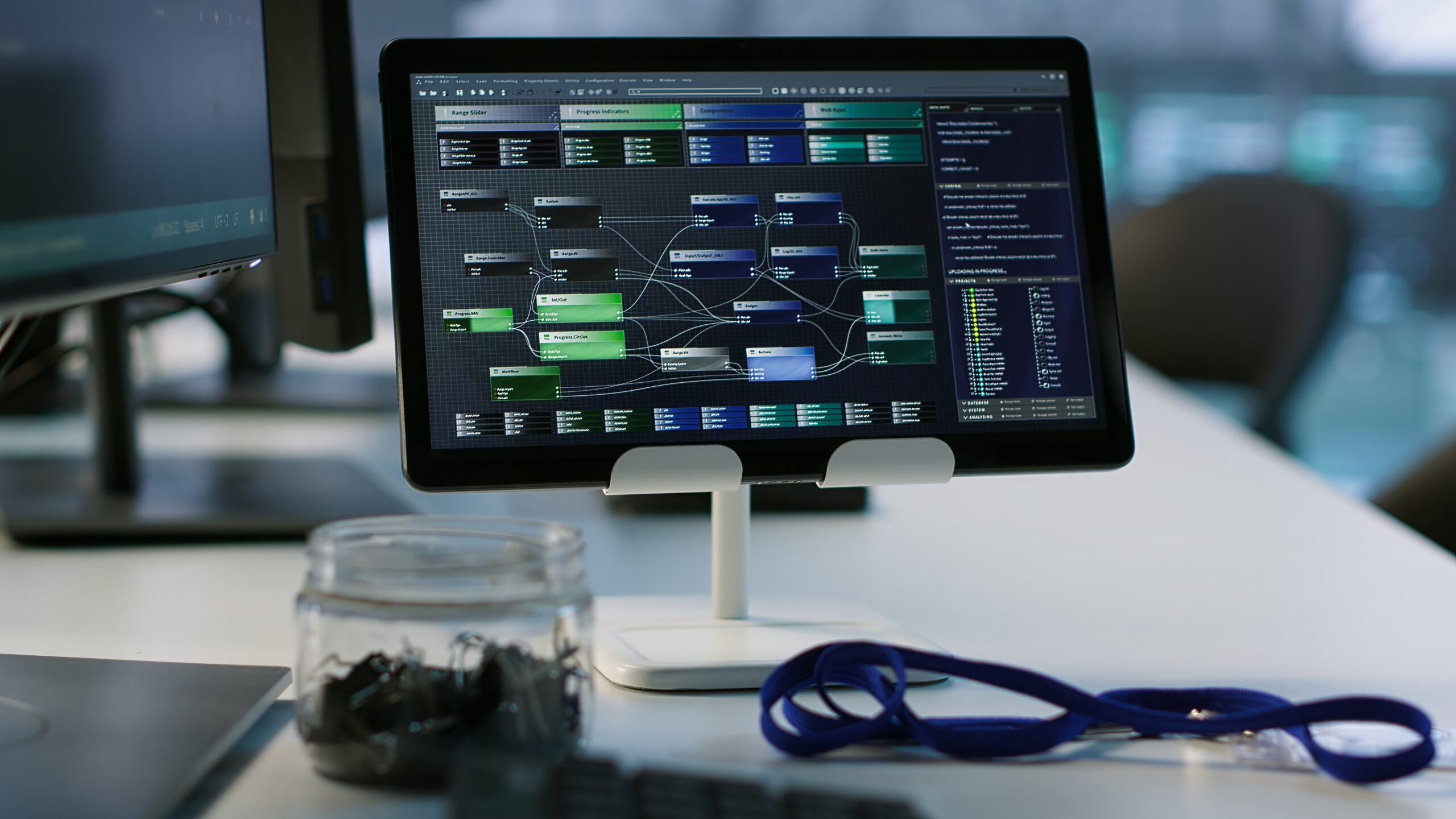
Traditional drawing tools often struggle with complex flowcharts or system architectures. Figma is a professional interface design tool that is surprisingly effective for technical diagrams. By verifying your student status, you get the “Pro” features for free.
- Collaboration: Multiple students can work on the same diagram simultaneously during group projects.
- Vector Quality: Diagrams remain sharp regardless of how much you zoom in, which is essential for detailed system maps.
- Infinite Canvas: Perfect for brainstorming large-scale projects without running out of page space.
Video Editing: Professional Demos in Minutes
CapCut (Desktop)
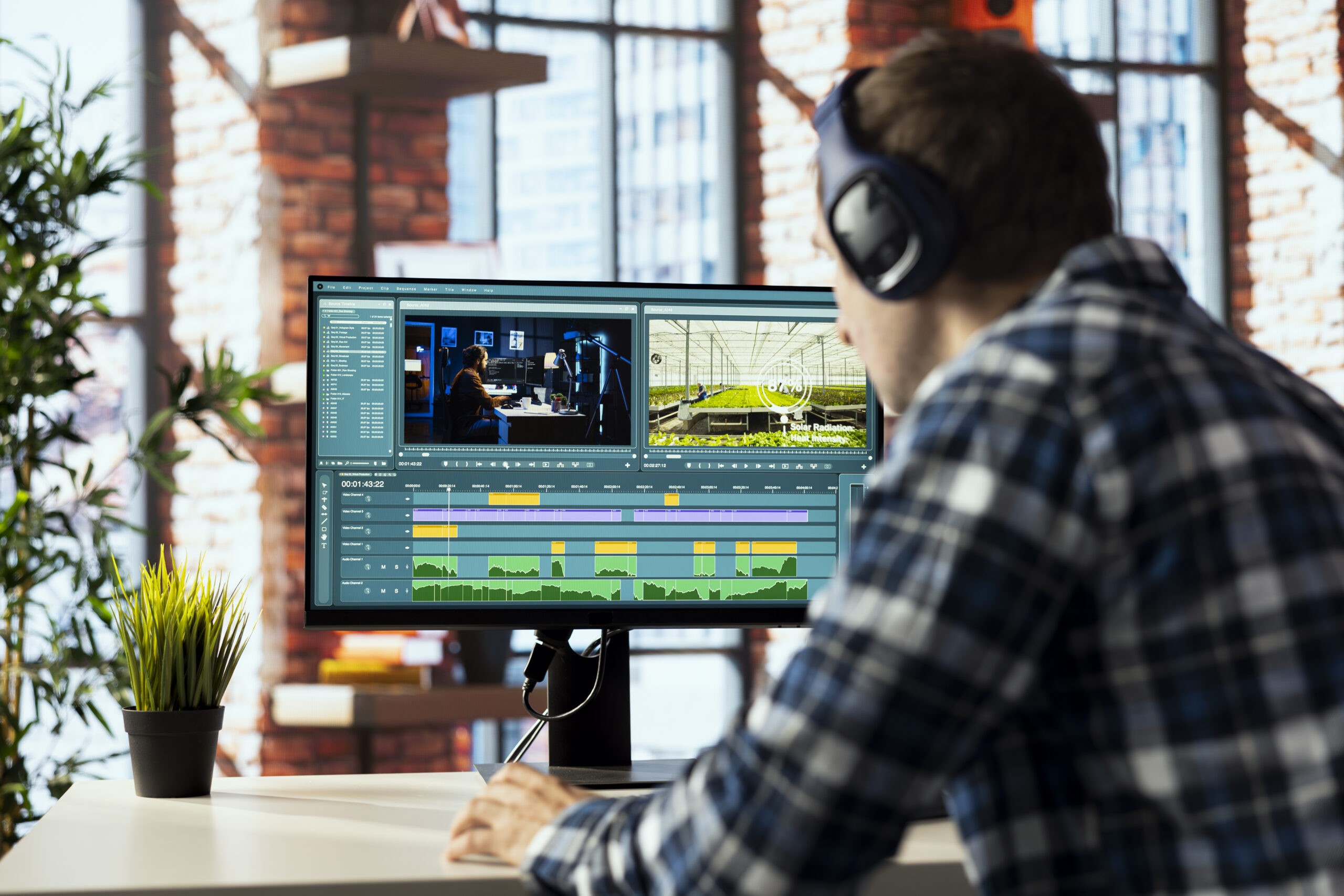
Video is now a standard requirement for demonstrating hardware projects or software code. While professional editors like Premiere Pro are powerful, they are often too slow for a student’s schedule. CapCut Desktop provides a streamlined alternative.
- Auto-Captions: Automatically turns your speech into text overlays, which is vital for clear project explanations.
- Performance: It is highly optimized to run on standard laptops without crashing during the render process.
- Zero Cost: As long as you remove the default “end clip,” the final video exports without a watermark at 1080p or 4K.
Why Efficiency Beats Complexity
Many students feel pressured to use “industry-standard” software like Photoshop or Premiere Pro. While these are great for creative professionals, they often introduce unnecessary friction for engineering tasks.
The Downsides of Heavy Pro Tools
- High Learning Curve: Hours spent watching tutorials instead of finishing the project.
- Subscription Costs: Monthly fees that add up over a four-year degree.
- Hardware Demands: These programs often lag or crash on mid-range laptops.
By choosing lightweight, AI-enhanced tools, you focus on the content of your work rather than the mechanics of the software.
Final Thoughts
In 2026, the quality of your presentation is often as important as the technical data behind it. This creative stack ensures you can produce professional-grade visuals and videos without a watermark and without wasting time. The goal is to spend less time editing and more time engineering.
Model Checking: Programming a Simple Model Checker Together Part I
Back to Blog Feb 28, 20265 min read Although Model Checking can seem a very...
Best Free Footage & Design Inspiration Websites for Content Creators (2026)
Back to Blog Feb 28, 20265 min read How to focus on the 20% that...
Leave a Reply